
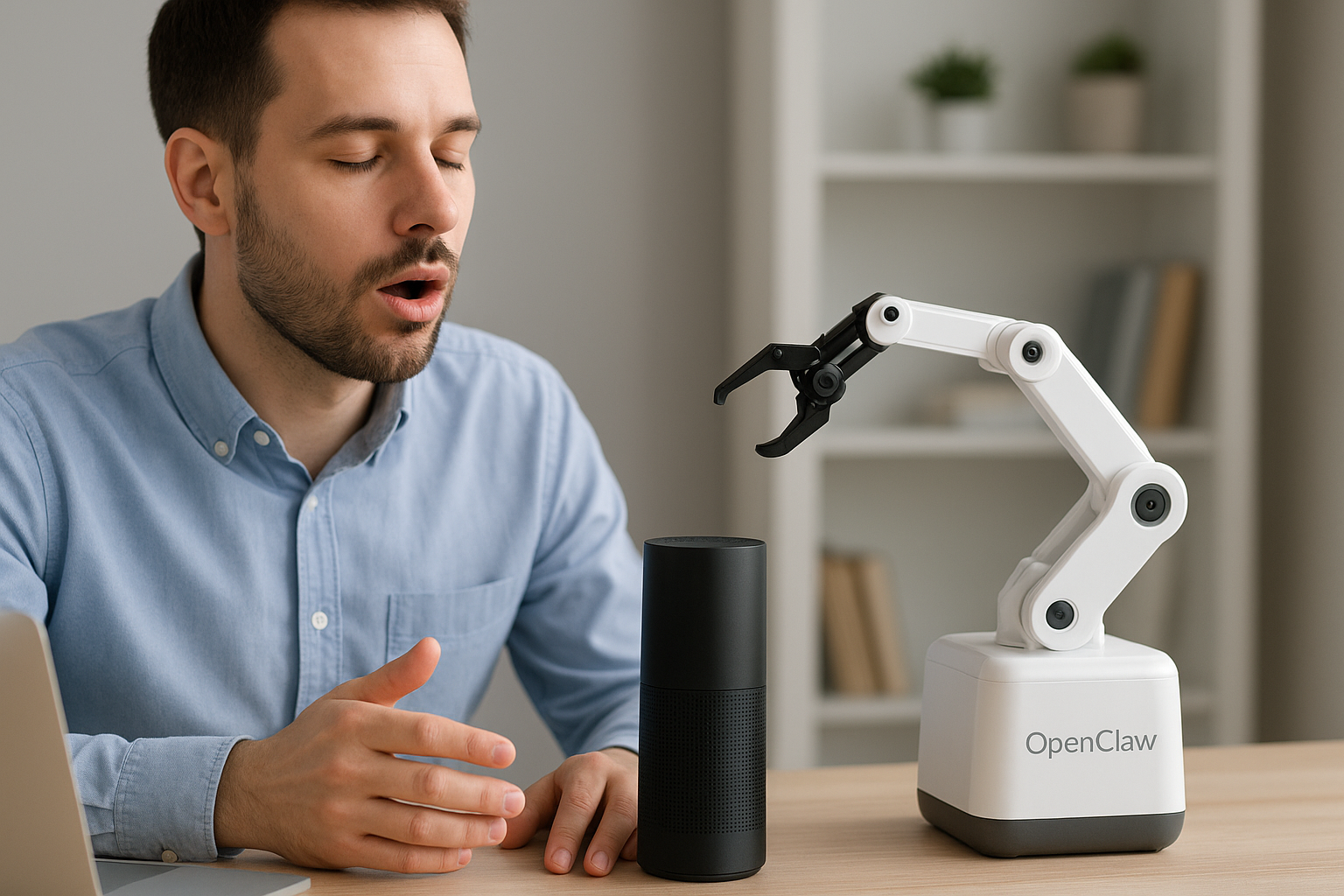
OpenClaw voice commands enable seamless interaction with AI through speech, boosting accessibility and productivity in various scenarios. However, integrating voice functionality involves balancing real-time responsiveness with system resource constraints, especially when deploying on different hardware setups. Users must decide how to configure speech-to-text and text-to-speech components to optimize both performance and user experience.
See also: practical automations and customization, advanced security features, ai tool integration strategies
Overview
OpenClaw voice commands enhance user interaction by enabling speech-to-text input and text-to-speech output, facilitating hands-free control and continuous conversation. Compared to other voice assistants, OpenClaw offers flexible configuration of TTS and STT providers, supports fallback mechanisms for transcription reliability, and allows scoped access to protect resources. Voice commands improve productivity in scenarios like remote server management and multitasking by converting spoken instructions into actionable commands. Additionally, OpenClaw's voice features promote accessibility for users with disabilities and can be extended with custom skills or integrated with IoT devices, offering a customizable and secure voice interface tailored to enterprise AI deployments.
Key takeaways
- OpenClaw voice commands use STT to transcribe audio to text, enabling slash command parsing from voice input.
- Audio pipeline tries multiple STT models/providers in order, with CLI fallback for reliability.
- TTS converts OpenClaw text replies to speech; configurable trigger modes control when TTS activates.
- Recommended TTS mode is 'inbound' to speak replies only after voice input, balancing UX and cost.
- Voice command scope rules restrict STT usage by chat type to prevent abuse and control budget.
- Live conversation requires separate microphone/speaker device paired with stable gateway server.
- Custom voice command skills extend OpenClaw functionality, enabling tailored voice interactions.
Decision Guide
- Choose provider-first STT when low latency and high accuracy are priorities.
- Use CLI fallback STT if offline capability or cost control is critical.
- Enable TTS 'inbound' mode to balance user experience and cost.
- Avoid always-on TTS to prevent excessive audio spamming and expense.
- Restrict voice commands to private chats if security or budget is a concern.
- Opt for live conversation mode only if paired devices and real-time interaction are needed.
- Implement custom skills when default commands don’t meet your workflow needs.
Enabling continuous live conversation mode increases user experience but demands paired hardware and stable network, complicating deployment compared to simple voice note transcription.
Step-by-step
Configure STT models in OpenClaw JSON to transcribe voice notes into text commands for processing.
Enable TTS under messages.tts to convert OpenClaw text replies into audio responses.
Use 'inbound' TTS mode to speak replies only when user input is voice, balancing UX and cost.
Set audio scope rules to restrict voice command usage and protect STT budget.
Chain STT providers with fallback CLI tools to ensure transcription reliability.
Deploy live conversation nodes with paired microphone devices for continuous talk mode.
Customize voice commands by creating and integrating OpenClaw skills for tailored workflows.
Common mistakes
Indexing
The article lacks canonical tags, risking duplicate content issues across multiple language versions.
Pipeline
The voice command processing pipeline does not handle fallback model failures gracefully, causing potential downtime.
Measurement
CTR and impression metrics are not segmented by voice command usage, obscuring true user engagement.
Indexing
No robots.txt disallow rules for staging or test voice command pages, risking accidental indexing.
Pipeline
Internal linking between voice command tutorials and related skills guides is sparse, reducing discoverability.
Measurement
GA4 event tracking is missing for custom voice command usage, limiting conversion analysis.
Conclusion
OpenClaw voice commands work best when configured with a robust speech-to-text model chain and scoped appropriately to prevent unauthorized use, making them ideal for private, productivity-enhancing scenarios and accessible interactions. However, they can fail in noisy environments, with long or complex voice inputs that exceed transcript limits, or if the TTS and STT providers experience outages or rate limits, requiring fallback strategies and careful configuration to maintain reliability.